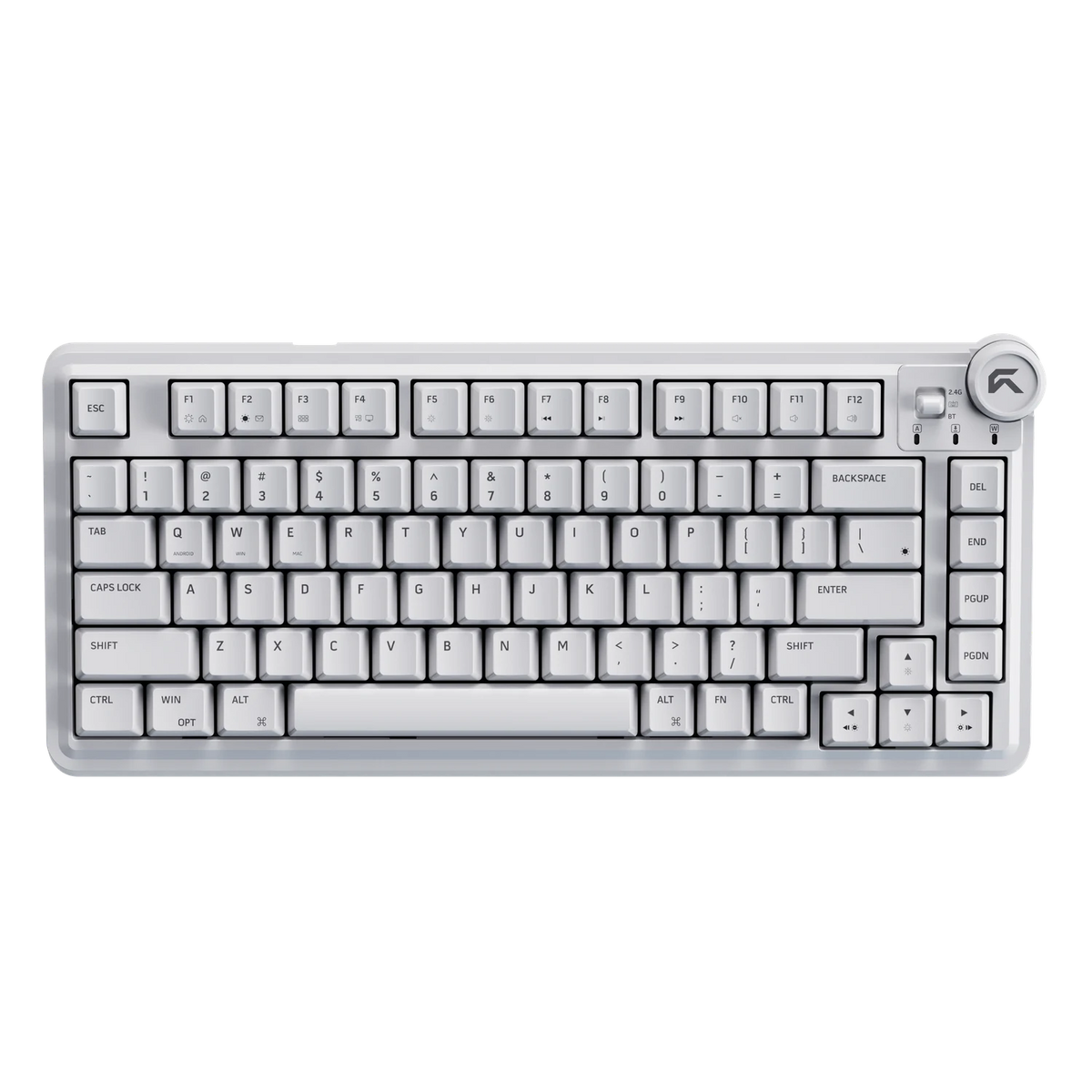
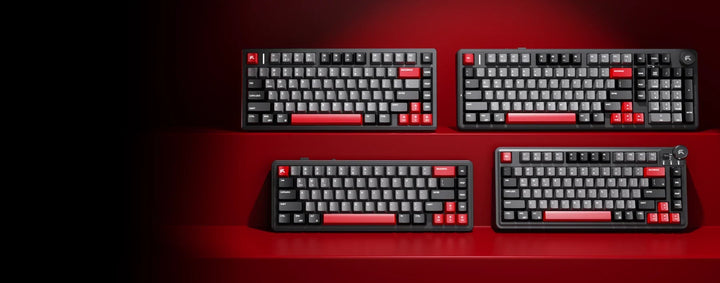
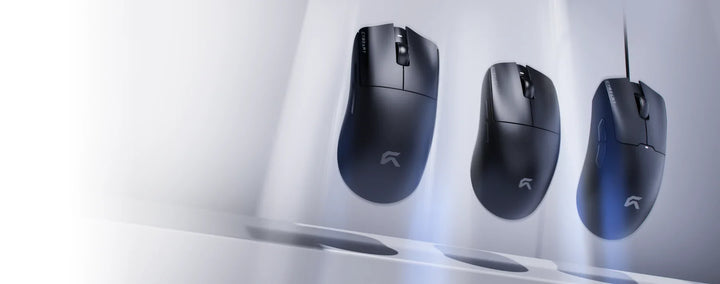
Tri-mode means one keyboard or mouse connects three ways: through a 2.4 GHz wireless dongle, over Bluetooth 5.1, or with a USB-C cable. Use the dongle for gaming on your main PC, Bluetooth for a laptop or tablet, and the cable when you want to charge or simply leave it plugged in.
The Three Modes in Plain Terms
2.4 GHz
A small receiver goes into a USB port on your PC and talks to the keyboard or mouse on its own channel. This is the mode for play. Our tri-mode keyboards are rated at 1000 Hz polling and 1 ms latency, so the board reports to the PC a thousand times a second, and the Artemis mouse carries the same 1000 Hz and 1 ms rating. The link is steadiest with the receiver close to the device and plugged straight into the PC, not into a crowded hub.
Bluetooth 5.1
No receiver needed. The device pairs with anything that has Bluetooth: a laptop, a tablet, a second computer. It is the convenient mode away from the gaming desk, when you would rather keep a USB port free. For competitive games, go back to the dongle.
USB-C Wired
Plug in the cable and the device works as a wired board or mouse. The tri-mode keyboards ship with a 1.6 m braided cable, the X75 Rhino with a 1.9 m coiled one. The Artemis has a 1.8 m paracord cable, USB-C at the mouse and USB-A at the PC, and that cable is also how its batteries charge.
Which Mode for Which Setup
- Gaming desktop: 2.4 GHz for the keyboard and the mouse. No cables on the desk, and the 1000 Hz rating.
- Laptop on the same desk: pair the keyboard to the laptop over Bluetooth and keep the dongle in the PC. You can move between the two machines without touching a cable.
- Tablet or travel: Bluetooth. At 723 g the Akula 65 is the smallest board in the range and easy to carry with a tablet.
- Long session, low battery: plug in the USB-C cable and keep going.
All our tri-mode keyboards work with Windows 7, 10 and 11, macOS and Linux.

Battery Life, Keyboard by Keyboard
Lighting draws the most power, which is why every battery figure comes as two numbers, lights off and lights on.
- X75 Rhino: 8000 mAh, up to 500 hours with the lights off, 40 hours with them on.
- Akula 99: 8000 mAh, up to 400 hours off, 32 hours on.
- Nighthawk 75: 4000 mAh, up to 266 hours off, 22 hours on.
- Akula 65: 4000 mAh, up to 200 hours off, 25 hours on.
That is a big gap. Type with the RGB on all day and you will be charging every few days; with the lights off, a Nighthawk 75 can go weeks between charges at normal use. Plugging the cable in at the end of each week is an easy habit to keep.
Mice: Two Ways to Never Run Flat
The Artemis uses Hyperswap™: two 300 mAh batteries that swap in seconds, so one is always charged and ready. It is rated up to 40 hours of use, which works out to up to 20 days at 3 hours a day. When one runs low, take it out, drop in the spare and charge the first over USB-C.
The Xeus is our flagship mouse, a 39 g tri-mode mouse with its own 8K receiver. Its 300 mAh battery lasts 34 hours at 1000 Hz and 12 hours at 8000 Hz. At the higher rate it reports eight times as often, which is why the battery runs down faster. For a long evening of play on wireless, run 1000 Hz; if you want 8000 Hz all night, plug in the cable.
The Ghost is wired only, with a USB-A cable, and there is nothing to charge.
If You Never Unplug
A keyboard that never leaves the desk may not need wireless at all. The Nighthawk 75 Lite, Akula 99 Lite and Akula 65 Lite are wired versions of the same layouts, with the same 5-layer gasket mount, hot-swap sockets and 1000 Hz polling, and no battery to charge. Cut the wireless, not the feel.
Battery figures for every board are on the gaming keyboards page; the Artemis, Xeus and Ghost are on the gaming mice page.